
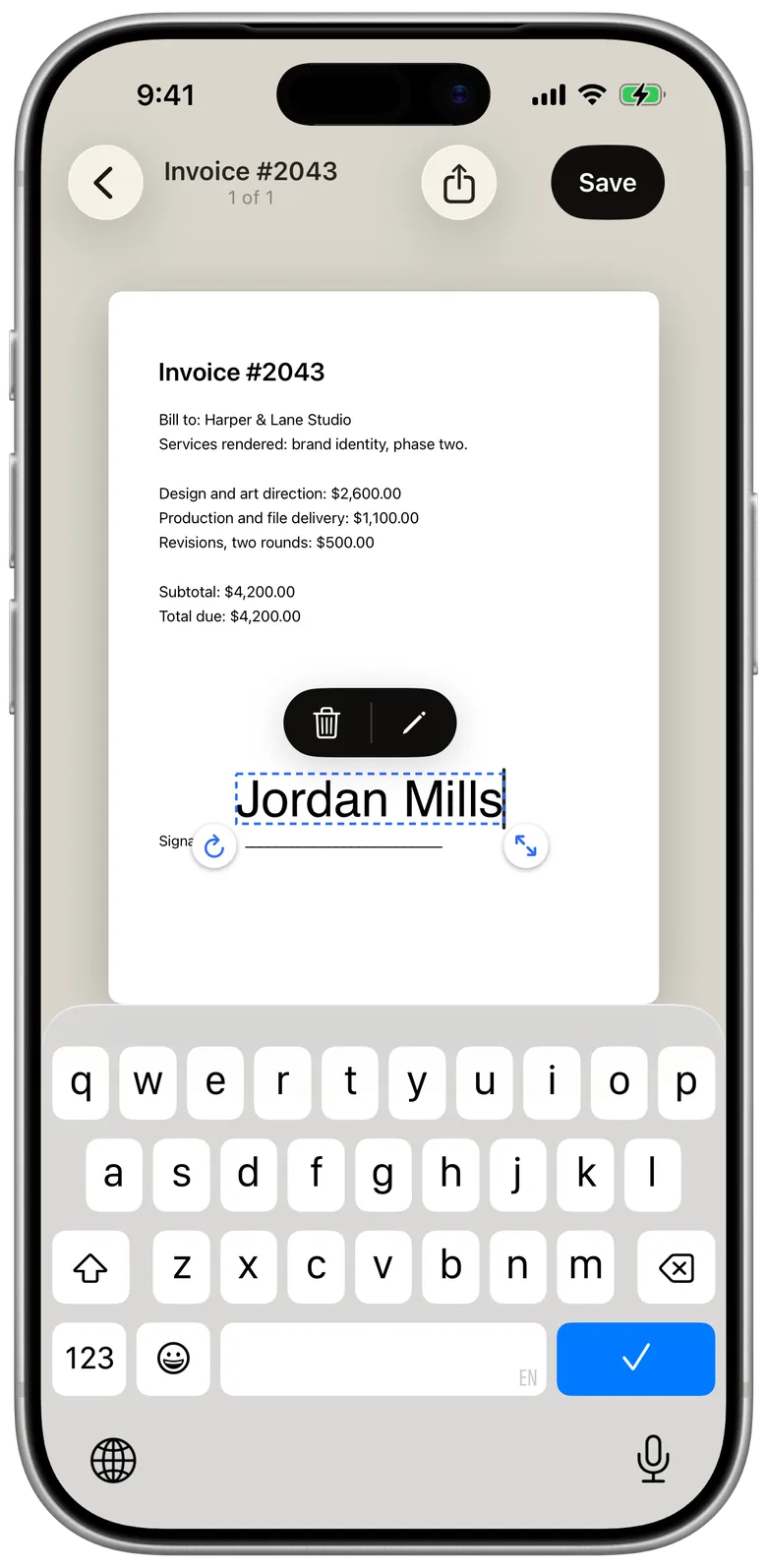
To sign a Word document on iPhone, you can draw your signature on the page in the Word app, using the Draw tab and your finger. For a signature that looks like the one you write on paper, export the document as a PDF from Word, save it to Files, and sign the PDF in an app such as eSign Me.
Sign in Word with Draw
Word for iPhone has a Draw tab with pens, colors and line thickness. On a phone, drawing with touch is on by default, so you can sign with a fingertip (Microsoft Support).
- Open the document in Word.
- Tap the Draw tab.
- Pick a pen, a dark color and a thin line.
- Zoom in on the signature line and sign with your finger.
- Save the document and send it back.
This is quick and free, and the document stays a .docx. The trade-off is how it looks. A fingertip on glass moves differently from a pen on paper, so the result is usually wobbly and larger than your real signature. Signing on a computer instead? See how to add a signature in Word.
Sign a Word document with your real signature
For a signature that looks like yours, turn the document into a PDF and sign that. Word exports PDFs on iPhone in three steps (Microsoft Support):
- Open the file in Word and tap the three-dots menu.
- Tap Export, then PDF.
- Save the PDF to Files, for example to On My iPhone or iCloud Drive.
Then sign it in eSign Me:
- Open eSign Me and pick the PDF from Files.
- Place your saved signature where the document asks for it, and add initials, dates or typed details if the form needs them.
- Export the signed PDF and send it back, or send a signing link to the next person.
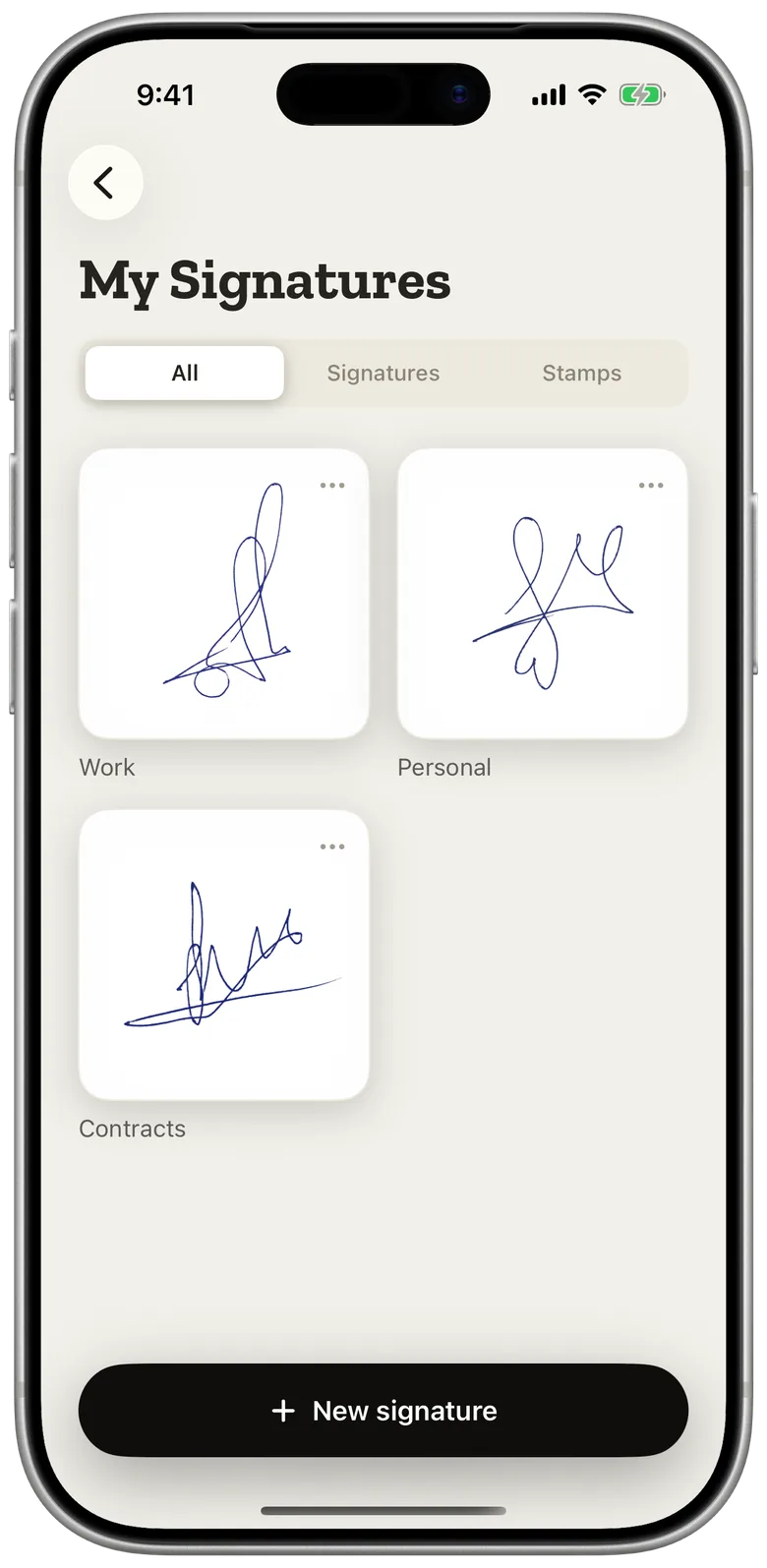
If you haven't saved a signature yet, the one-time setup takes about a minute: sign a sheet of paper, photograph it, and the app lifts the ink off the page. The steps are in how to scan your signature. Everything else about placing and adjusting a signature is in how to sign a PDF on iPhone.
If the Word file arrived by email
Most Word documents reach a phone as an email attachment. Tap the attachment to preview it, then open it in the Word app from the share menu, and export it as described above. eSign Me opens documents from Files, so the export has to land there first: saving straight from Word to Files is the shortest path.
Before you sign, scroll through the exported PDF once. Word sometimes swaps a font or moves a line when it converts a document, and a signature placed on a page that later turns out to be wrong has to be redone.
Add the date and your printed name
Signature lines in Word templates often come with "Date" and "Name" next to them. In eSign Me you fill them in the same way as the signature: add a date in the format the document uses, and add your printed name from details you save once, so you don't type it on every form. Initials for every page, or a company stamp, go on the same way.
Common problems
- The Draw tab signature looks too big. Zoom into the signature line before you draw, then zoom back out. The ink shrinks with the page.
- eSign Me doesn't see the file. It opens PDFs. A .docx has to be exported to PDF in Word first.
- The file is too large to send for signing. Signing links take documents up to 25 MB. Signing and exporting on your own iPhone has no such limit, so a large file can still be signed and sent as an attachment.
What you get: a signed PDF, not a .docx
After this route the signed document is a PDF. That is usually what the other side wants back. A PDF looks the same on every device, and a different version of Word can't shift the layout around your signature.
If the other person needs to keep editing the text, sign last: agree on the wording in Word first, then export and sign the final version. If they send you a changed draft, export and sign again, since a signature on an older version doesn't carry over.
When the other side has to sign too
The same PDF can go to the next signer as a link. They open it in their browser, on a phone or a computer, and sign there, with no Word, no app and no account. The signed copy comes back to your library. Each link is for one signer and stays valid for 7 days.
Which way should you pick?
Use Word's Draw tab when the document is informal, stays inside a small team and may still change. Use the PDF route when the document is final, goes to a client, a landlord or an employer, or needs someone else's signature after yours.
Questions
Can I keep the signed file as a .docx?
Only if you sign inside Word with the Draw tab. If you sign with your real signature in eSign Me, the signed file is a PDF.
Does the other person need Word to sign?
No. If you send the PDF as a signing link, they open it in any browser and sign there, with no Word, no app and no account.