
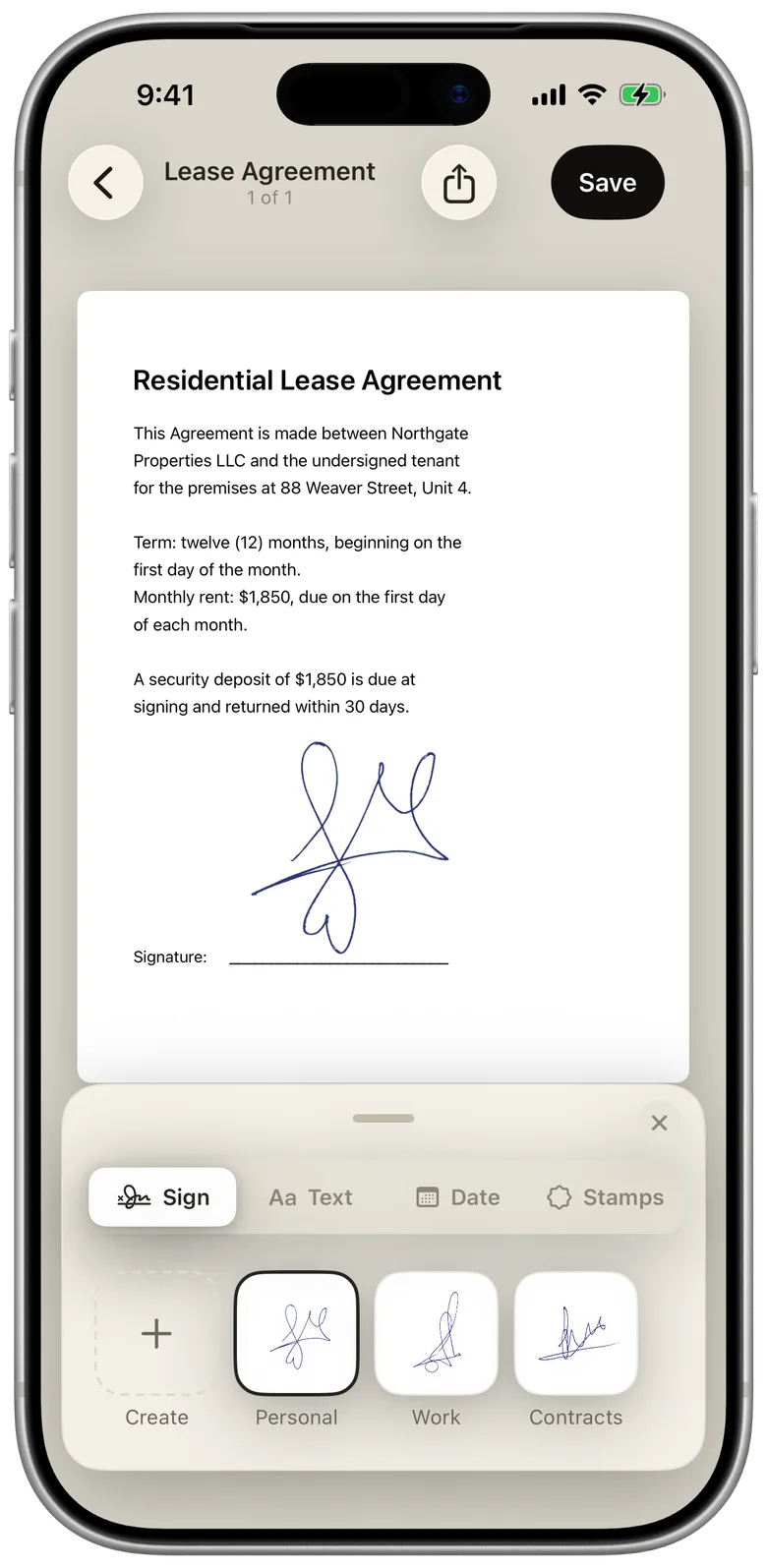
You can sign a PDF on iPhone in two ways. Markup, built into iOS, lets you open the file, tap Add Signature and draw your name with a finger. A signature app such as eSign Me lets you place your real handwritten signature, scanned from paper, and send the document to someone else to sign.
How to sign a PDF on iPhone with Markup
Markup is free and already on your phone. Apple's steps for iOS 18 (Apple Support):
- Open the PDF. If it arrived in Mail or Messages and your iPhone asks, open it in the Files app and tap Save.
- Tap the Markup button.
- To fill in a field, tap it and type. For a spot without a field, tap the Add button, then Add Text Form Box.
- Tap the Add button, then Add Signature. Sign your name with your finger and tap Done.
- Drag the signature where it belongs, and resize it by dragging the dots around it.
- Share the finished document through Mail, Messages or AirDrop, then tap Done.
iPhone saves the signature for next time, and you can keep several, such as your full name and your initials. AutoFill can also fill in your name and address from your card in Contacts.
Markup has two limits. The signature is drawn with a fingertip, so it rarely looks like the one you write on paper. And it only signs for you: when the document needs someone else's signature, you have to send them the file and hope they can sign it on their end.
How to sign a PDF with your real signature
eSign Me puts the signature you actually write onto the page. You scan it once, from paper, and then every document takes a few taps. How the scan works, with tips for a clean one, is in how to scan your signature.
- Open the PDF in eSign Me. Pick it from Files, choose a photo from Photos, or take a picture of a paper document with the camera.
- Choose your signature from your saved signatures and place it on the line.
- Adjust it with your fingers: resize and rotate it so it sits naturally on the line.
- Export the signed PDF, or send it to the next signer.
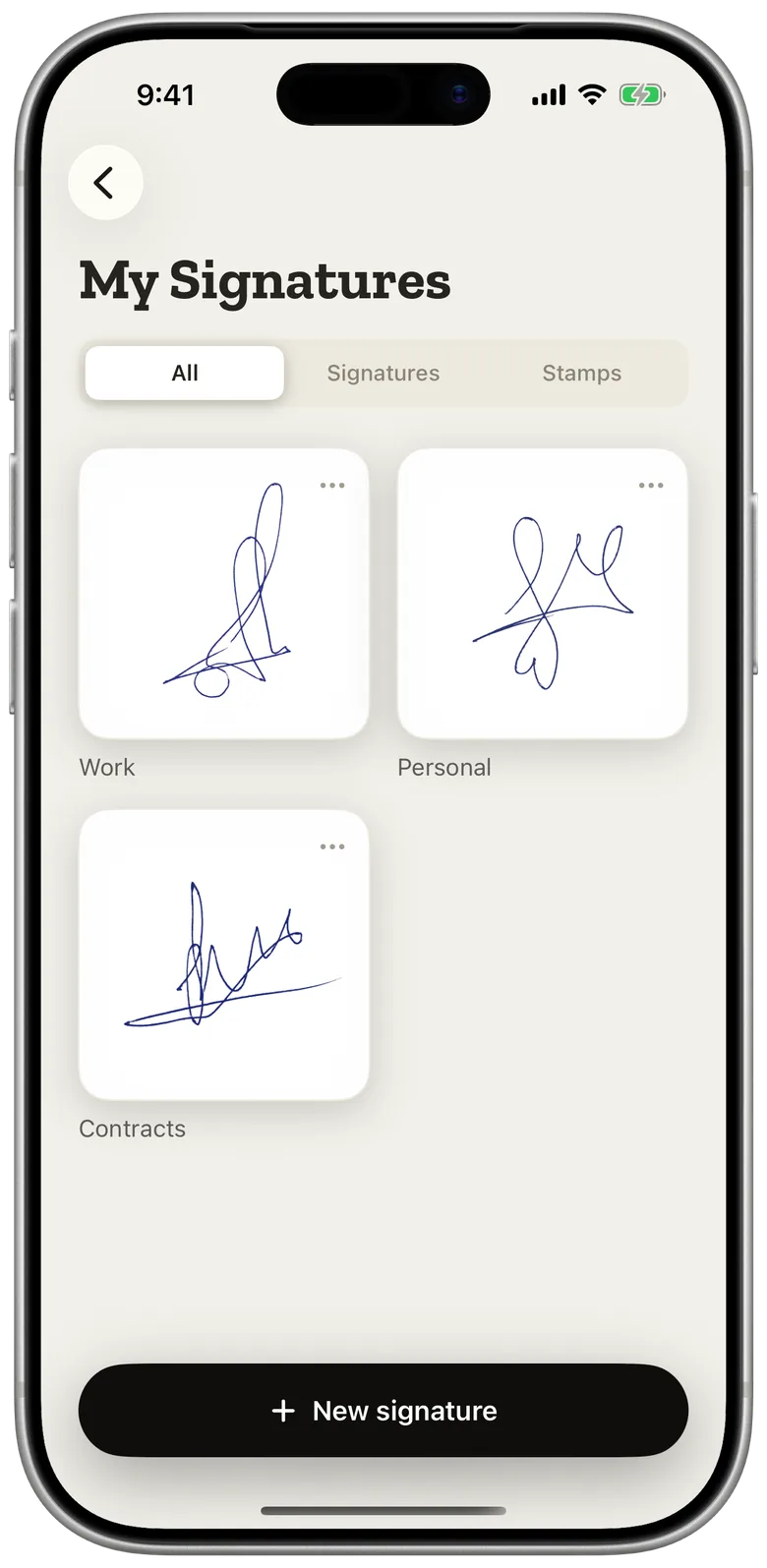
The signature keeps the color of your pen, so a document signed in blue looks signed in blue.
Fill in the rest of the form
Most forms want more than a signature. In eSign Me you can add:
- your initials on every page that asks for them
- a company stamp, scanned the same way as a signature
- typed text, such as your name, address or phone number, from details you save once
- dates, in the format you prefer
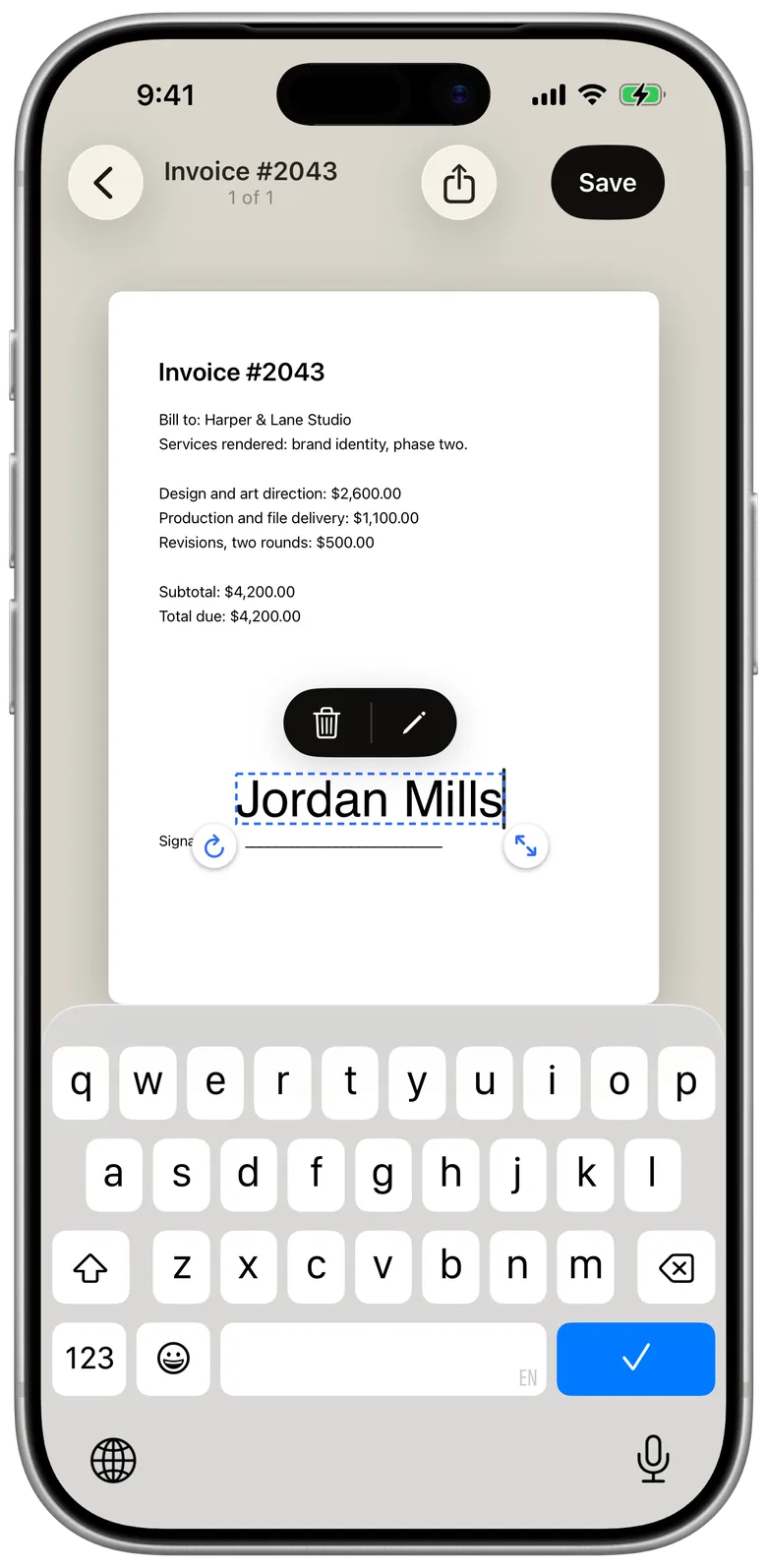
Each item moves, resizes and rotates the same way as the signature. Saved details mean you type your address once, not on every form.
Sign a paper form on iPhone
If the form arrived on paper, you don't need a scanner. Photograph it with the camera in eSign Me: the app squares up the page, evens out the lighting and saves a proper PDF. From there it is a normal document, ready to fill, sign and send.
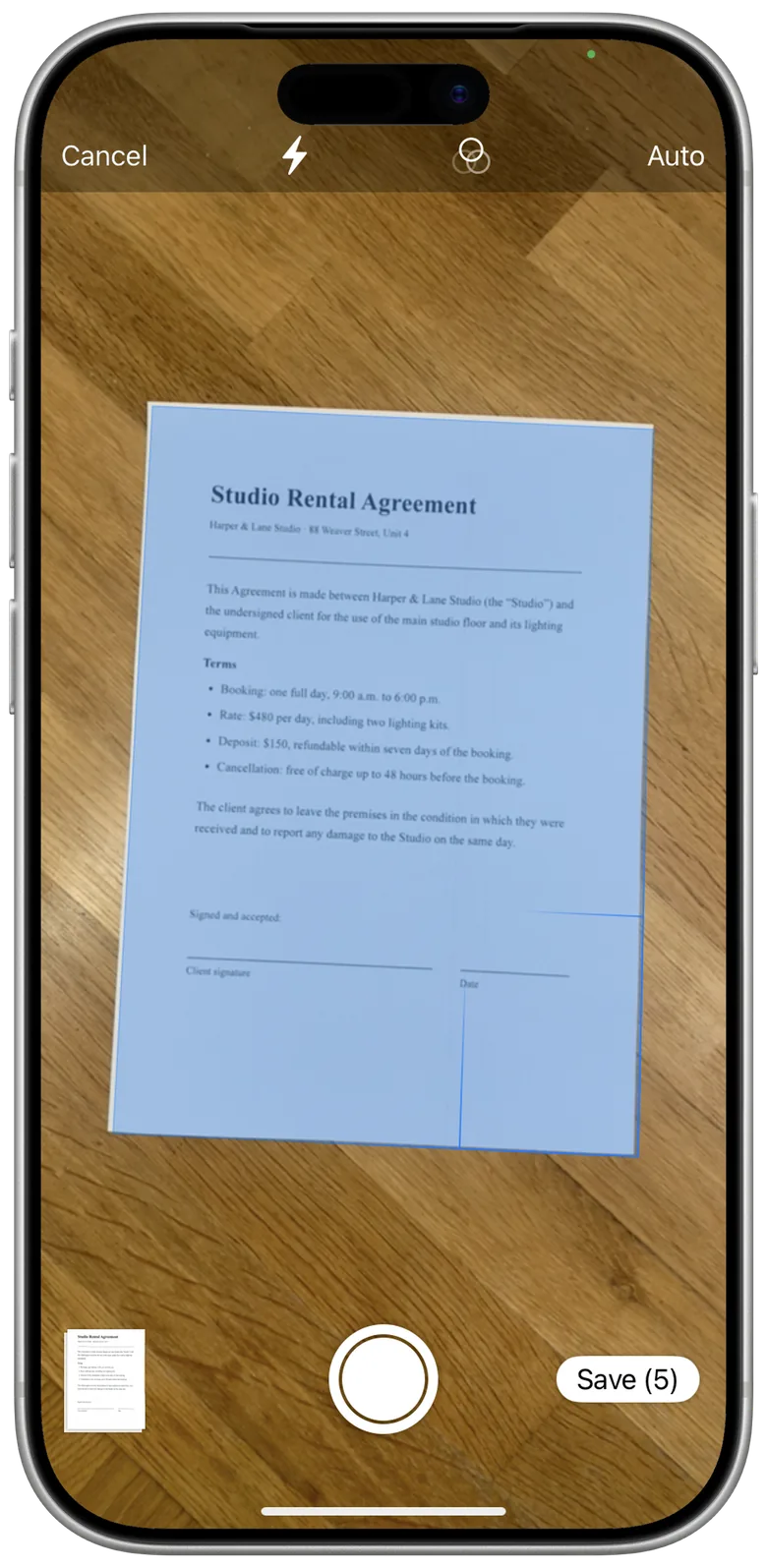
For the cleanest result, lay the page flat on a dark table, so its edges stand out, and shoot in even light.
What if the document is a Word file?
Neither Markup nor eSign Me signs a .docx directly. Save the Word document as a PDF first, then sign the PDF. The steps, and what you get back, are in how to sign a Word document on iPhone.
When someone else needs to sign
A contract or a lease usually needs two signatures, and the second one is where documents get stuck. The other person has to print the pages, sign, scan and send them back.
eSign Me sends a link instead. After you sign, tap Request signature and share the link by message or email. The other signer opens it in the browser on any phone or computer, and signs by photographing their signature on paper or drawing it on the screen. They don't install an app or create an account.
You can follow the request as it moves: sent, opened, signed. The signed copy comes back to your library. A signing link stays valid for 7 days, and each link is for one signer. If a third person needs to sign, send the signed copy to them next. How this works for rental agreements is in how to sign a lease online.
Questions
Can I sign a PDF on iPhone without Markup?
Yes. A signature app such as eSign Me opens the PDF from Files, Photos or the camera and places a signature you scanned from paper, instead of one drawn with your finger.
Is it free to sign a PDF on iPhone?
Markup is free and built into iOS. eSign Me is free to use as of September 2026; paid plans are planned.
How do I sign a Word file on iPhone?
Export it from Word as a PDF (three-dots menu, Export, PDF), save it to Files, then open and sign the PDF. Word can also take a finger-drawn signature on its Draw tab.